

Discord is not only for gaming now. Many companies, freelancers, startups, and student teams use Discord for work. It helps in chatting, voice calls, video meetings, file sharing, and teamwork. If you want a simple and free platform for communication, learning how to set up a Discord server for professional working is a smart idea. A clean and organized server can help teams work faster and stay connected. It is especially useful for remote teams who work from different locations.
Discord is popular because it is easy to use on mobile, desktop, and browser. Team members can stay connected anytime and anywhere. It also supports quick notifications for urgent work updates.
Table of Contents
Follow these steps to set up a Discord Server for Professional working:
Create Your Discord Server
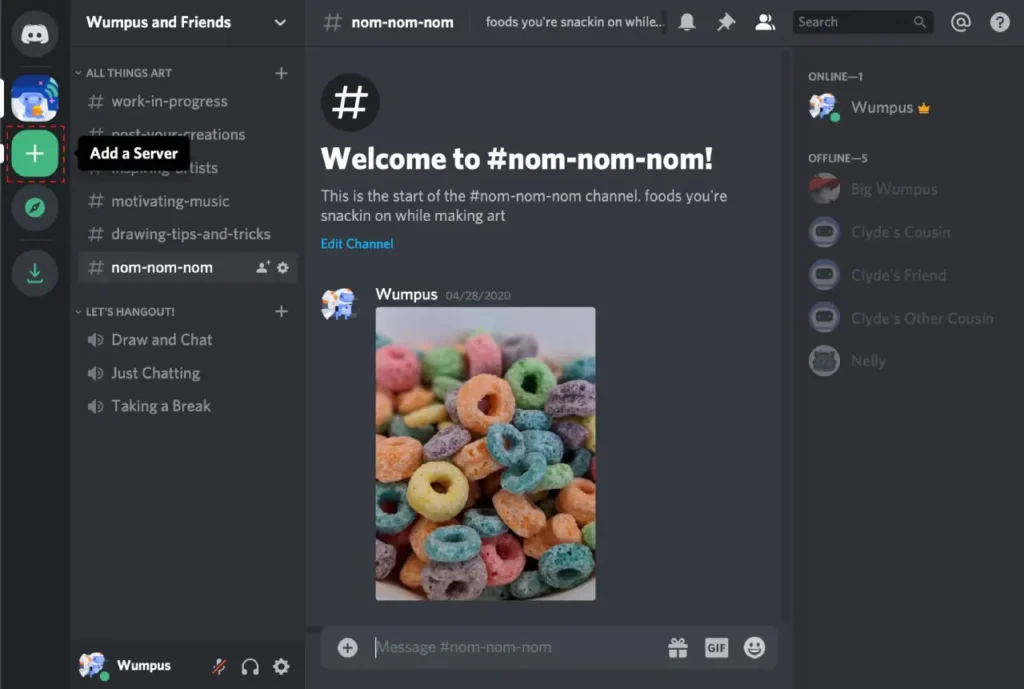
First, download Discord on mobile or PC. You can also use the browser version. Create your account and click the plus (+) button on the left side. Then choose Create My Own Server. Add your company or team name and upload a logo if you want. Use a professional and simple name like Office Team, Work Hub, Startup Group, or Project Team. A clear name gives a professional look. A custom logo can also improve branding.
Create Important Channels
Channels help organize communication. You should create separate channels for different work purposes. For text chat, make channels like announcements, general chat, team updates, projects, support, and resources. For voice communication, create channels like Meeting Room, Client Call Room, and Team Talk Room. This helps everyone know where to communicate and keeps work organized. It also reduces confusion during busy work hours.
Set Roles and Permissions
Roles are important because they control who can access channels and settings. You can create roles such as Admin, Manager, Employee, Client, and Guest. Admins should manage the full server. Employees should access normal work channels. Clients or guests should only see limited channels. This keeps your private work safe and secure. It also improves management control.
Keep the Server Organized
A clean server looks professional and saves time. Use categories to group channels. For example, create categories like Work, Information, Meetings, and Social. Put project channels inside Work, announcements inside Information, and meeting rooms inside Meetings. A simple structure makes it easier for everyone to use the server daily. Organized servers increase productivity.
Use Discord for Meetings
Discord is very useful for online meetings. You can use voice calls and video calls for daily team meetings, client discussions, training sessions, and project updates. Screen sharing is also available, which helps in showing presentations, reports, coding work, designs, or files. This makes remote teamwork easier. Meeting quality is usually smooth with a stable internet connection.
Add Useful Bots
Bots can help automate tasks and improve productivity. You can add reminder bots, poll bots, moderation bots, or support bots. Reminder bots help with deadlines, poll bots help in decisions, and moderation bots keep the server clean. Only add trusted bots for security reasons. Bots save time for managers and teams.
Create Professional Rules
Every work server should have clear rules. Ask members to respect everyone, avoid spam, use the correct channels, join meetings on time, and keep company data private. Good rules help maintain discipline and smooth teamwork. Clear rules also reduce conflicts.
Security Tips
Security is important for any professional server. Use a strong password and enable 2-factor authentication. Give admin roles carefully and remove inactive members regularly. Check permissions from time to time. These steps help protect your team and private information. Security should always be a priority.
Best Uses of Discord for Work
Discord is useful for startups, freelancers, online businesses, remote teams, student project groups, developers, and digital agencies. It is a great tool for communication, collaboration, and teamwork. Many small teams use it as a low-cost workspace. It is also useful for growing businesses.
FAQ ‘s
1. Is Discord good for professional work?
Yes, Discord is very useful for communication, meetings, teamwork, and project discussions.
2. Is Discord free to use?
Yes, most Discord features are free. Some premium features are optional.
3. Can I do video meetings on Discord?
Yes, Discord supports voice calls, video calls, and screen sharing.
4. Is Discord safe for office work?
Yes, if you use roles, permissions, strong passwords, and 2-factor authentication.
5. Can clients join my Discord server?
Yes, you can create a client role and give limited access.
6. Can Discord replace Slack?
For many small teams, startups, and freelancers, yes.
Final Words
Learning how to set up a Discord server for professional working is simple and useful. Create clear channels, set proper roles, add rules, and keep everything organized. Discord can become a smart and modern workplace for teams, startups, freelancers, and remote workers. It can improve communication and help teams grow faster.
Also Read: https://gadgets180.com/best-ar-glasses-for-daily-use/
Also Read: https://gadgets180.com/impact-of-solid-state-batteries/
Also Read: https://gadgets180.com/cheap-4k-projectors-for-home-theater/
Also Read: https://gadgets180.com/top-rated-noise-canceling-headphones-under-200/
Also Read: https://gadgets180.com/best-ar-glasses-for-daily-use/